
















How To Band Lock ProLink
Why you can trust Waveform
Waveform is the leading provider of solutions for improving cellular signal and connectivity. Our team of experts has decades of combined experience in wireless communication and remains committed to providing honest, data-driven reviews and recommendations. We rigorously test every product we sell and maintain complete editorial independence. No company can pay to influence our reviews or product ratings.
Read more about Waveform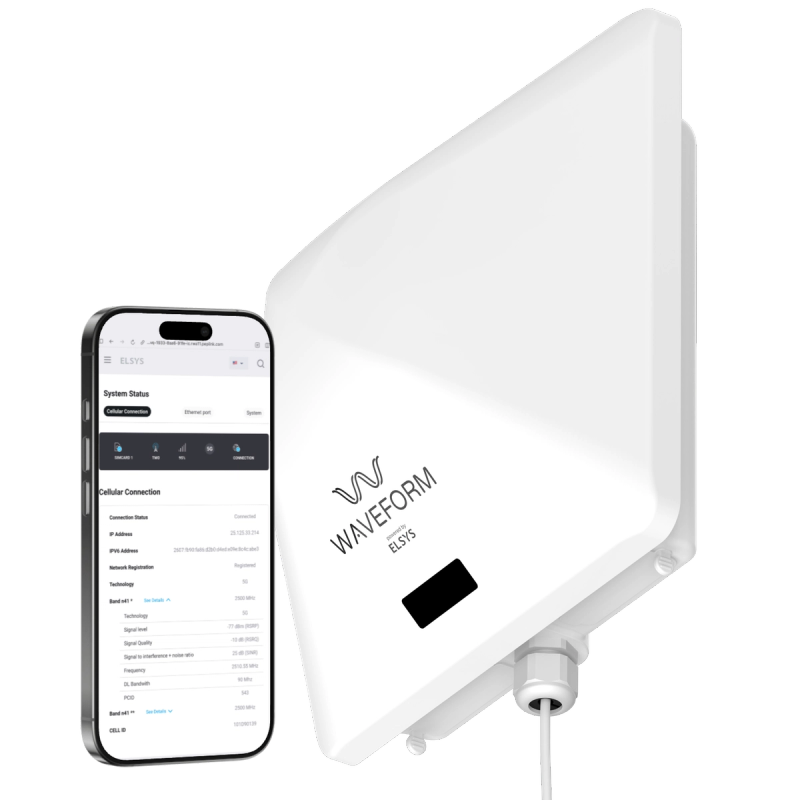
Reliable, high-speed cellular internet depends on far more than a strong-looking signal bar. Each tower around you broadcasts several frequency bands, and the bands your ProLink connects on can make the difference between a fast, rock-steady connection and a frustratingly slow one.
This guide explains what cellular bands are, why they matter, and how you can use ProLink’s web interface to experiment with different band selections.
Understanding Cellular Bands
Before you begin experimenting with band locking, it helps to know what a “band” actually is.
Every cell tower transmits on one or more frequency bands. These are slices of the radio-frequency spectrum reserved for mobile data. Different bands can behave a little differently depending on factors including their frequency and usage.
Low-frequency bands (anything below roughly 1 GHz) travel a long way and penetrate buildings quite easily. They are the dependable workhorses of cellular signal, but they have less bandwidth and, because so many devices can connect to them them, they often get congested.
High- and mid-frequency bands, by contrast, don’t travel as far, yet they can carry wider bandwidth, faster data channels and are typically less congested. The trade-off is simple: reach versus raw speed.
Frequency Range Common Bands Typical Behaviour Low (< 1 GHz) 600 MHz (B71) Excellent building penetration and range 700 MHz (B12/13/14/17) Less total bandwidth 850 MHz (B5/26) Speeds can suffer at busy times Mid / High (> 1 GHz) 1900 MHz (B2/25) Shorter reach but more bandwidth 2100 MHz (B4/66) Often delivers higher throughput 2500 MHz (B41) When the tower is within sight 3500 MHz (B48) 3700 MHz (B77)
Why this matters: The fastest theoretical band on paper may not be the fastest one at your home. Distance, interference, and tower load all influence the winner on any given day.
What Is Band Locking?
Under normal circumstances your ProLink performs its own scan, weighs up every band it hears, and latches onto the combination it determines will deliver the best experience.
Band locking gives you the steering wheel: you choose which bands the modem may (or may not) use.
Why bother taking manual control?
- A nearby tower might broadcast a fast mid-band channel that the modem can see, but it may still prefer a busier low-band because that appears to have “stronger” signal.
- Peak-hour congestion can tank performance on popular bands while lesser-used channels hum along untouched.
- By limiting the modem’s choices you can force it to try alternatives, measure real-world speed, and keep the result that works best at your location.
Think of band locking as asking the modem to prove its assumptions.
When Should You Experiment with Band Locking?
Most users never have to touch these settings. However, it is worth a try when:
- You see theoretically good signal but webpages still crawl.
- Speeds that were once fine drop sharply without warning, particularly at certain times of day.
- You have just completed (or plan to complete) a Virtual Site Survey and want to validate which tower and frequency band performs best .
- You simply enjoy squeezing every last bit of performance out of your equipment.
Step-by-Step Guide to Band Locking
1. Request Your Virtual Site Survey
Head to setup.wf/ProLink to request your free Virtual Site Survey.
We’ll send you a personalized report that flags the nearest towers for your carrier, lists the bands each tower transmits, and even provides a suggested aiming direction.
Having that cheat-sheet makes the next steps far easier.
2. Open the Web UI
- Power up your ProLink and your downstream Wi-Fi router.
- Connect a computer (Ethernet is quickest, Wi-Fi is fine) to the router.
- In a web browser, visit 192.168.10.254.
- Log in using the admin username and password printed under the left flap of the modem.
3. Choose Which Bands to Enable
From the "Start" screen, tap the ≡ menu and open "Operating Bands".
A list of every LTE and 5G band supported by the modem appears, each with a simple on/off toggle. Enable and disable bands using those toggles.
You can also disable entire technologies (3G, 4G, 5G) or change 5G mode between AUTO, NSA, and SA. After making your selection, press SAVE; the ProLink will ask to reboot so it can scan only the bands you left enabled.
Nothing is permanent. You can revisit this menu at any time to re-enable bands you switched off earlier.
4. Identify the Fastest Band, or Combination of Bands
There is no substitute for testing, but the process is straightforward:
- Lock to a single band, save, and let the modem reboot.
- Run two or three speed tests (fast.com or speedtest.net) and jot down download, upload, and latency. There’s a table in the back of your manual to make this easy.
- For a deeper look, tap the ≡ menu, open "System Status" and tap "See Details" beside the active band. Three numbers matter most:
- SINR (signal-to-noise): +3 dB is the bare minimum; double-digit positives are great.
- RSRP (signal strength): Closer to −80 dBm is excellent; anything higher than −110 dBm is usually fine.
- RSRQ (signal quality): Aim for −12 dB or better.
- Record your findings.
- Repeat with the next band, then with logical combinations (e.g., the mid-band you loved plus a low-band for reach). ProLink can aggregate up to five channels, but sometimes a single powerhouse band still wins.
The measurement table on page 31 of your manual will help keep your results organized.
How to Tell If Band Locking Is Helping
Band locking only matters if it actually improves what you experience. The goal isn’t to force your modem onto a specific frequency just because it looks good on paper. It’s to make your connection behave better in real life.
Here are the clearest signs that locking your modem to a band or combination of bands is genuinely helping.
- Faster, steadier speed-test results are the most obvious sign.
- Streaming and video calls feel consistent rather than lurching between good and bad quality.
- Speeds stay consistent regardless of the time of day, even during peak evening hours when congestion usually causes slowdowns.
- RSRP, RSRQ, and SINR values drift toward the healthier ends of the ranges above.
If you’re unsure or have questions about what you’re seeing, visit setup.wf/ProLink to connect with our team of dedicated Signal Specialists, we'd love to help!
Quick Recap
- Get your free Virtual Site Survey at setup.wf/ProLink.
- Log in to 192.168.10.254 and open Operating Bands.
- Disable everything except one band, reboot, and measure.
- Compare results, then explore multi-band combinations.
- Revisit the process any time speeds deteriorate - carriers upgrade towers, switch bands on or off, and add new spectrum all the time.
If you hit a roadblock, tap the help icon in the Web UI or visit setup.wf/ProLink. Our Signal Specialists are always keen to help you chase that optimum performance.
About the authors
 Marcus Carstens
Marcus is the VP of Product at Waveform, where his team runs Waveform Internet, builds the company's 5G antennas and accessories, manages the third-party products it sells, develops services like plug-and-play private 5G, and writes the documentation that supports it all. He came to connectivity from an unlikely direction, with a degree in biodiversity and ecology, which turns out to be good training for making sense of messy, interconnected systems. He spends most of his time on the parts of a product people feel but rarely think about: whether the connection holds, whether the setup is easy, whether the whole experience earns trust. His approach is craft-first, built on a stubborn belief that getting the small things right is what keeps customers around.
About Waveform
At Waveform we help enable reliable cellular connectivity, everywhere. Trusted by thousands of consumers as well as NASA, Tesla, Stanford, and more. Learn more about Waveform
Suggested articles
See All Guides
The Definitive Guide to Multi-WAN Internet
By Marcus Carstens · 51 min read
How to Run Ethernet Outside Without Drilling Holes
By Sisanda Kheswa · 3 min read