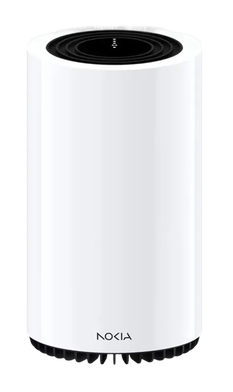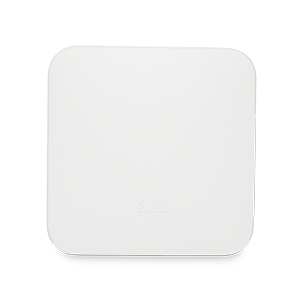












Verizon Internet Gateway (ASK-NCM1100/NCM1100E) External Antenna Guide
Why you can trust Waveform
Waveform is the leading provider of solutions for improving cellular signal and connectivity. Our team of experts has decades of combined experience in wireless communication and remains committed to providing honest, data-driven reviews and recommendations. We rigorously test every product we sell and maintain complete editorial independence. No company can pay to influence our reviews or product ratings.
Read more about Waveform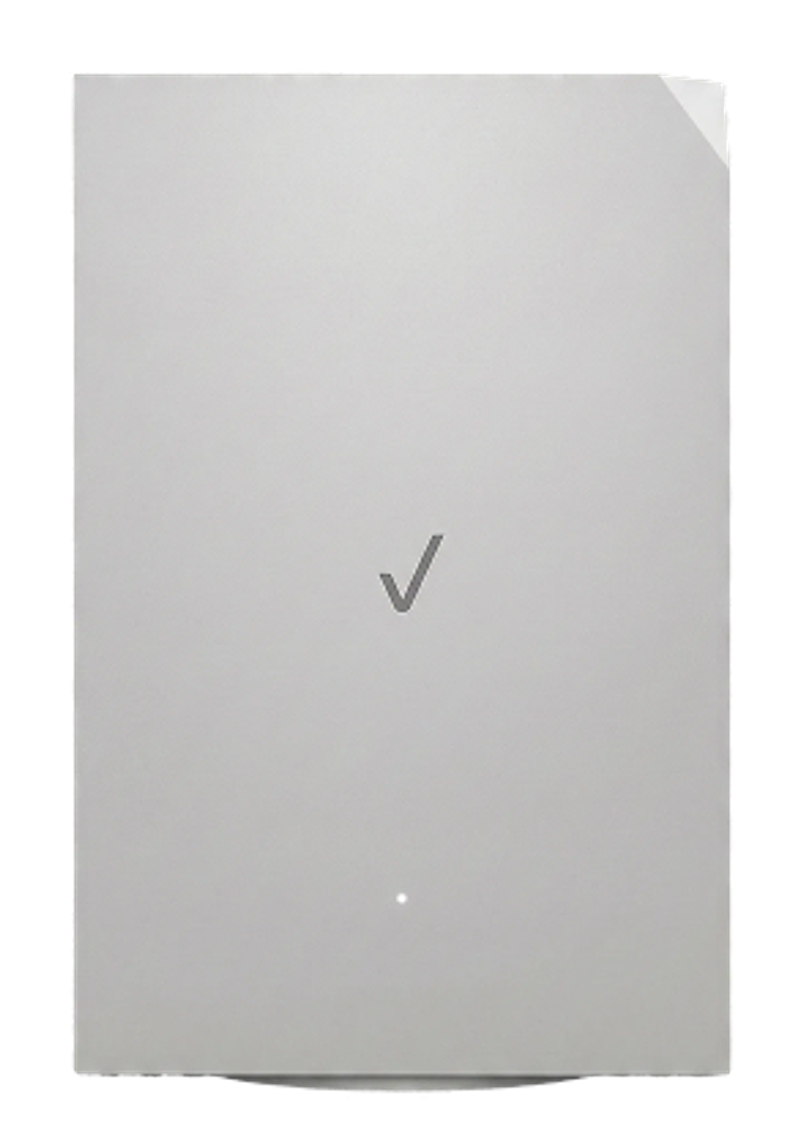
- How to Identify Your Device: NCM1100 vs NCM1100E
- The Best External Antennas For the Verizon 5G Business Gateway
- Why External Antennas Are Critical for Improving Data Rates
- Installing External Antennas to the Verizon 5G Business Gateway ASK-NCM1100E
- Step 1 - Identify The Ports
- Step 2 - Connect Your Antenna
- Installing External Antennas to the Verizon 5G Internet Gateway ASK-NCM1100
- Step-by-Step Guide to Installing Adapters for External Antennas
- Move your SIM card to an upgraded outdoor modem for ASK-NCM1100
- Positioning and Aiming MIMO Antennas
- Verizon 5G Internet Gateway Technical Specifications
- Other Helpful Resources
- Documentation
- A Helpful Guide on Installing and Maintaining U.FL Connectors
Looking to get the best possible data rates from your Verizon Internet Gateway?
The path forward depends on which model you have. The ASK-NCM1100E has four external SMA ports- no disassembly required. The ASK-NCM1100 does not, so you’ll want to purchase and connect external MIMO antennas to the device’s four internal U.FL ports.
In this guide, we'll:
- Help you identify which model you have.
- Recommend the best external antennas to use.
- Show you how to access the internal U.FL antenna ports, and how to install adapters for external antennas.
- Explain how to aim the antennas for best results.
How to Identify Your Device: NCM1100 vs NCM1100E
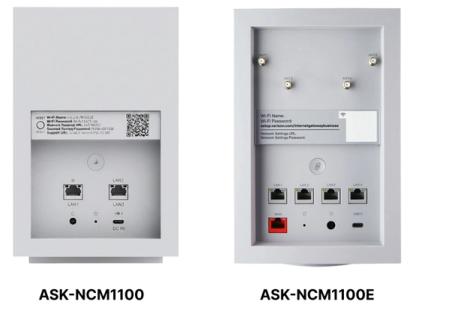
The ASK-NCM1100 and ASK-NCM1100E look nearly identical from the outside. The easiest way to tell them apart is to check whether the unit has four SMA ports on the back, and the label on the underside of the unit for the model name.
- ASK-NCM1100 - No external antenna ports. Connecting external antennas requires opening the device to access internal U.FL ports.
- ASK-NCM1100E - For Business accounts. Has external antenna ports (ANT1–ANT4) on the rear of the unit. No disassembly required.
Important Note: To connect external antennas you'll need to open your Verizon Gateway. Read our instructions for doing so carefully to avoid damaging the device. Gateways are owned by Verizon, and they may charge you a repair fee if you return a damaged gateway device.
The Best External Antennas For the Verizon 5G Business Gateway
Using a MIMO antenna outside your building, pointed at the nearest tower, can help you get the fastest 4G LTE and 5G data rates possible.
Both the Verizon 5G Business Internet Gateway ASK-NCM1100 and ASK-NCM1100E have four cellular SMA ports, which allow for a 4x4 MIMO antenna to be connected to the device.
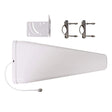
The recommended antenna choice for both models is our QuadPro Antenna Kit which will generally get you the fastest data speeds, thanks to its 9.1 dBi of directional gain. This is particularly important if you're on the edge of coverage, or have very weak signal.

QuadPro: High-Gain Directional 4x4 MIMO Antenna
Aim QuadPro at your nearest tower for blazing data, even at the edges of cellular coverage.
Why External Antennas Are Critical for Improving Data Rates
Most people think that external antennas primarily help you increase your data rates by increasing the signal strength. But that's not the case.
An increase in signal strength is often less important than other ways that external antennas help.
Here are the three main ways that external antennas help you increase your data rates:
They Improve Signal Quality
In 4G LTE and 5G networks, signal quality is measured as SINR (Signal to Interference plus Noise Ratio) or sometimes as RSRQ (Reference Signal Received Quality).
Improving signal quality has a huge impact on your data rates.
Higher data rates allow your hotspot to communicate using "higher order modulation schemes." That means they can use the same wireless spectrum to send more data per second.
However, there's one big caveat:
In order to improve your signal quality, you need to both aim and shield your outdoor antenna properly. We talk more about this in the next section.
They Allow You To Connect On More Bands
Hotspots like the Verizon 5G Internet Gateway support a feature called "carrier aggregation."
Carrier aggregation allows the Gateway to connect on multiple cellular bands simultaneously.
The more bands you're connected on, the greater the bandwidth, and the higher your data rates.
However, many of the higher frequency bands aren't able to penetrate into buildings. Using external antennas allows you to access higher frequency bands, which are often less congested and offer higher speeds than lower frequency bands.
MIMO Isolation
MIMO (Multiple Input Multiple Output) technology uses signals traveling along multiple paths simultaneously, increasing both bandwidth and reliability in wireless connections.
MIMO isolation is the antenna's ability to handle several data streams at once, cleanly and without interference, leading to quicker data speeds and steadier connections
Our external antennas are specifically designed for superior MIMO isolation, and dramatically outperform standard built-in antennas found in most home devices.
This means you'll see a more reliable connection with enhanced bandwidth, ensuring smoother streaming, gaming, and browsing with minimal interruptions.
Installing External Antennas to the Verizon 5G Business Gateway ASK-NCM1100E
Before getting started, it's always a good idea to run a couple of speed tests indoors from a device connected to your Verizon 5G Internet Gateway's WiFi. The results will fluctuate a little, but this is the baseline you're trying to improve.
Once you've tested your baseline internet speeds, you're ready to install external antennas.
In the next section of this guide, we'll show you how to connect adapters for external antennas to your Verizon 5G Internet Gateway.
Step 1 - Identify The Ports
The Verizon 5G Internet Gateway NCM1100E has four cellular antenna ports labelled ANT1 through ANT4, grouped together on the rear of the device. These are the ports your MIMO external antenna(s) will be connecting to.
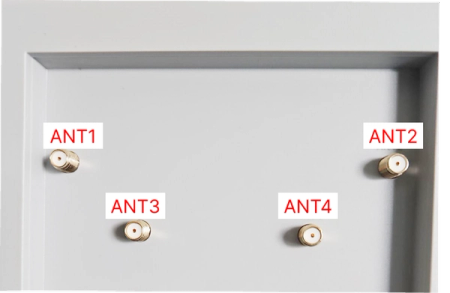
Step 2 - Connect Your Antenna
Simply connect the external 4x4 MIMO antenna(s) to the SMA ports on the rear of your Verizon 5G Internet Gateway NCM1100E.
Connect the antenna cables to ports ANT1 through ANT4 in order. If you're using one of our 4x4 MIMO Antenna Kits, the cables are labelled 1 through 4 on each end to make it easier to match up connectors from your antenna to the gateway.
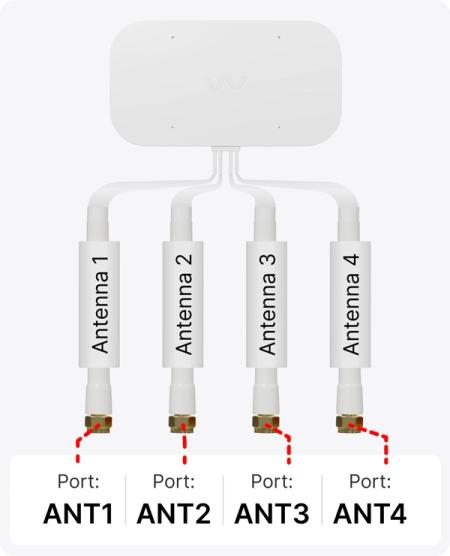
Congrats! Your Verizon 5G Business Gateway is now connected to your more powerful MIMO External Antennas.
Installing External Antennas to the Verizon 5G Internet Gateway ASK-NCM1100
In the next section of this guide, we'll show you how to open up your Gateway, connect adapters for external antennas, and close it back up.
Before you get started, you will need the following:
- A small phillips head screwdriver
- A Torx T8 screwdriver
- A small/thin flat-head screwdriver
- A thin plastic prying tool, needle-nose pliers, or tweezers
- Two or four U.FL to SMA-Female pigtail adapters (included in our 4x4 External Antenna kits)
- Tape for securing and labeling cables. Painters or Electrical tape works best.
- A secure container to keep screws and small parts safe while you work
Important Note:
To connect external antennas, you will need to open your Verizon Internet Gateway.
As part of your agreement with Verizon, you "borrow" this equipment from them. When you end your service, you'll likely need to return the gateway. If there's damage to the device, they are contractually able to charge you damage fees.
Waveform does not make any guarantees nor take any responsibility for damage caused to your unit when following these instructions. Please proceed at your own risk.
If you return your unit to Verizon make sure to reconnect the original internal antenna connectors before doing so.
Step-by-Step Guide to Installing Adapters for External Antennas
Step 1: Power off the Verizon Gateway and unplug the power cable.
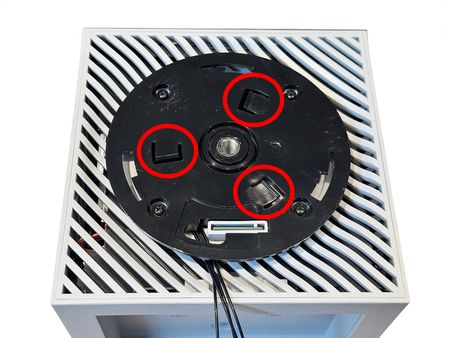
Step 2: Flip the unit upside down. Remove the circular disc that forms the base of the unit by sliding a thin prying tool between the gray disc and the black disc underneath it. While applying counter-clockwise pressure to the gray disc, disengage all three clips, one at a time.
NOTE: This is the most difficult step in the process. The base disc was not designed to be removed - it has three tabs that snap into place.
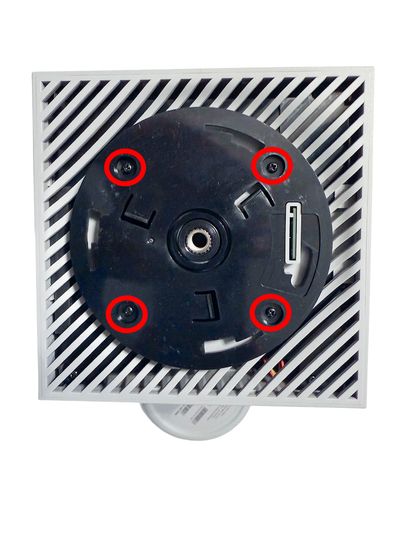
Step 3: Remove the four screws on the black disc using the Torx T8 screwdriver.
Step 4: Carefully insert a thin tool between the gray grille and the outer edges of the case. Work your way around the perimeter to unclasp the clips holding the grille in place, then remove it.
Step 5: Under the grille, locate the four black screws holding the internal assembly in place. Remove all four screws.
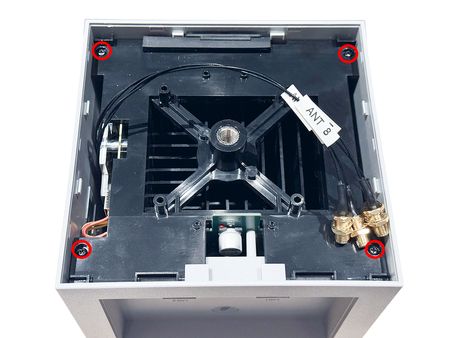
Step 6: Slide the entire inner assembly out through the bottom of the unit. It may take a small amount of force to get it started — it runs on a short track and will come out smoothly once disengaged.
NOTE: Do not attempt to open the unit from the top. There is no other way to access the internal assembly from that end.
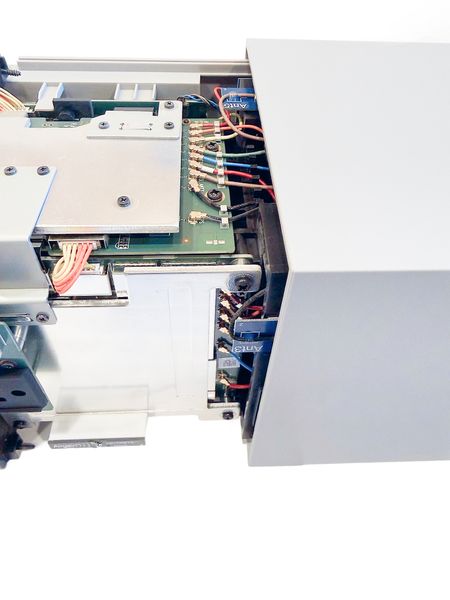
Step 7: With the inner assembly exposed, locate the U.FL antenna port board running along one side of the unit. You will see a row of ports labelled ANT3 through ANT8 (and beyond), each with a colored cable attached from the device's internal antennas.
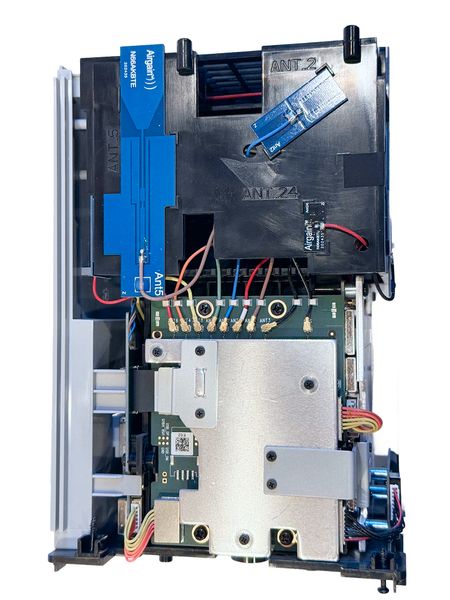
Step 8: Identify the four ports you will be connecting to: ANT3 (Black), ANT5 (Tan), ANT7 (Green), and ANT8 (Yellow). These are the ports associated with the 5G cellular signal, and these cables will need to be disconnected.The remaining ports should remain in place.
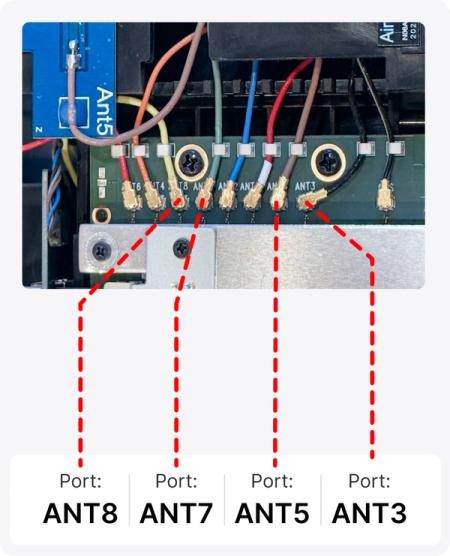
Step 9: Use a prying tool or pair of tweezers to very carefully disconnect the existing cables from ports ANT3, ANT5, ANT7, and ANT8.
NOTE: Be very careful. U.FL connectors can be quite fragile. Make sure you are very gentle to avoid breaking the connector when disconnecting it from the board.
Step 10: Once the U.FL cables for the internal antennas are fully disconnected, tape them together and move them to the side of the inner enclosure and out of the way.
Step 11: Route each of your four U.FL-to-SMA pigtail adapters through the vent openings on the side of the unit, feeding the thin U.FL ends toward the port board.
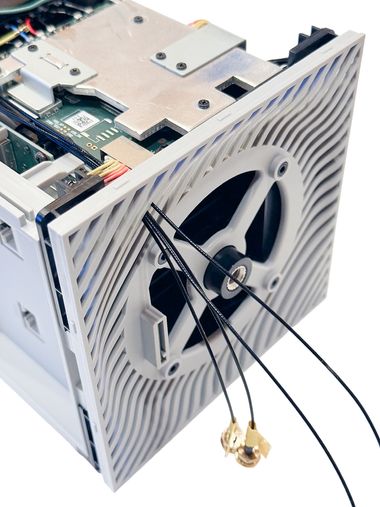
Step 12: Install your U.FL to SMA-Female pigtail adapters by very carefully aligning and pressing them down into ports ANT3, ANT5, ANT7, and ANT8. A quiet "click" can often be heard once the connectors are fully seated.
Tip: If you are struggling to seat the connector, use tweezers to gently spread the petals of the U.FL connector slightly further apart before pressing it into place.
Step 13 (Optional): Loop a small piece of tape around each pigtail cable and label it with the port name it connects to (ANT3, ANT5, ANT7, ANT8).
Labelling the adapters will help you remember which port each one connects to if you ever need to open the unit again.
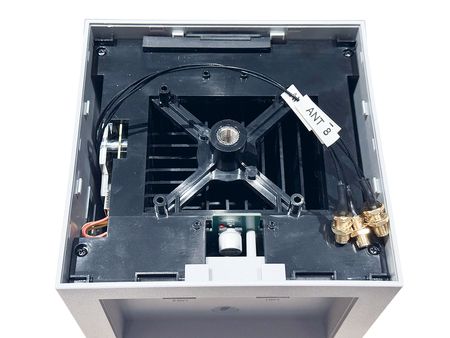
Step 14: Reassemble the unit in reverse order, carefully guiding the pigtail cables out through the bottom of the device as you do so.
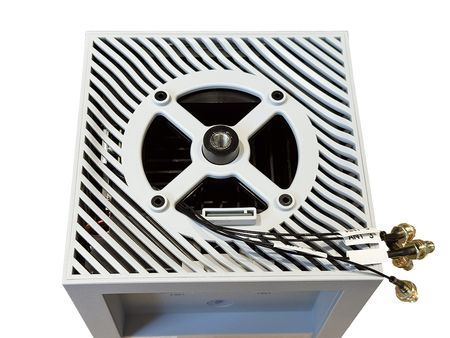
Your Verizon 5G Internet Gateway should now be ready to connect it's newly installed external antenna adapter cables to your external antenna(s.
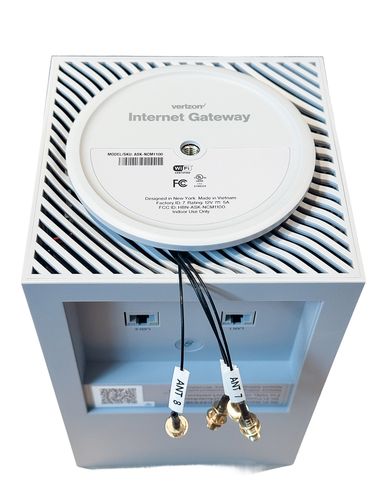
Step 15: Connect your external MIMO Antenna(s) to the labeled adapters installed in your Gateway in the order shown below:
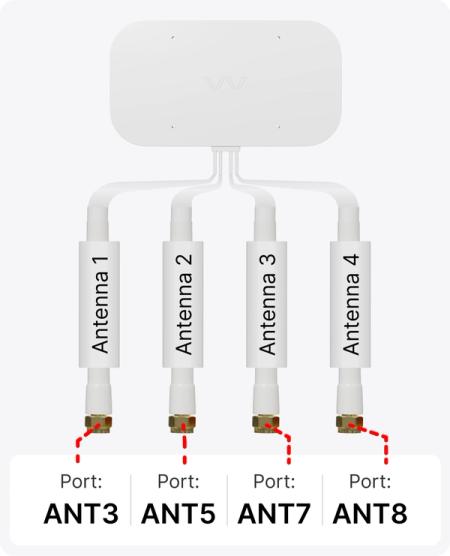
Congrats! Your Verizon 5G Internet Gateway is now connected to your more powerful MIMO External Antennas.
Move your SIM card to an upgraded outdoor modem for ASK-NCM1100
If you want the biggest possible improvement in performance, the ProLink Outdoor 5G Modem is the upgrade to consider. Instead of keeping your modem indoors and fighting through walls, ProLink combines a high-gain directional antenna and a Qualcomm X62 modem, right where the signal is strongest.
Because ProLink sits outside, where signal is strongest, it can deliver better speeds, lower latency, and more stable connectivity than most indoor gateways - even those that do support external antennas.

Positioning and Aiming MIMO Antennas
Positioning and aiming MIMO antennas well is crucial to getting the best performance to your Verizon 5G Internet Gateway, or indeed any other hotspot.
We've actually compiled a detailed QuadPro and QuadMini instruction manual to accompany our own MIMO Antenna Kits, where we go into depth on the best ways to aim the antennas.
The goal is to find the best location and direction for the antenna(s), to maximize data rates to the T-Mobile Gateway. It can take a little patience, but can have a huge impact – it’s worth a bit of extra effort!
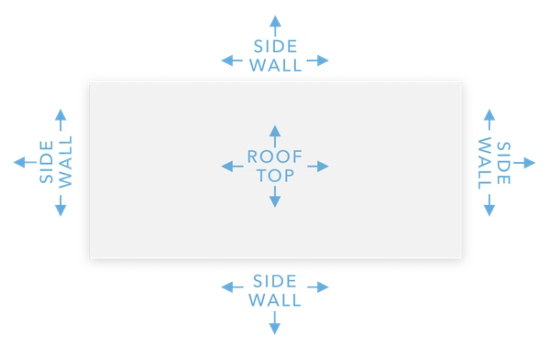
Connect your MIMO external antennas to your modified Verizon 5G Internet Gateway via the newly installed pigtail adapters, and go outside with your "test-rig".
With each location and direction you try, run a couple speed tests, and make a note of the results. Here are all the locations and directions where we recommend testing your MIMO antenna:
Pro tip: Don’t just go to the highest point of the roof! While signal is generally stronger the higher you go, there’s also often more interference. We’ve found it’s often better to mount the antenna(s) on the side of the building where the structure can shield the antennas from interference.
Once you've found the position which gets you the highest data rates to the Verizon Gateway, that's where you'll want to install the MIMO antenna. Go ahead and mount the antenna, run cables inside, connect everything up, and enjoy superior data rates!
Verizon 5G Internet Gateway Technical Specifications
Supported Verizon bands in the US
- 5G Bands: n2, n5, n48, n66, n77
- 4G LTE Bands: B2, B5, B13, B48, B66
Cellular Modem
- Model: Qualcomm Snapdragon X62
- MIMO Support: 4x4 DL / 2x2 UL (5G); 4x4 DL / 1x1 UL (LTE)
- LTE-A Carrier Aggregation: Yes
- LTE Performance Category: Cat 19 (Downlink), Cat 18 (Uplink)
- Max Theoretical Speeds:
- 5G SA: 2.4 Gbps Download, 900 Mbps Upload
- 5G NSA: 3.4 Gbps Download, 550 Mbps Upload
- LTE: 1.6 Gbps Download, 200 Mbps Upload
Wi-Fi
- Technologies: Wi-Fi 7 — 802.11 a/b/g/n/ac/ax/be
- Bands: Simultaneous 2.4 GHz and 5 GHz
Ports
- Cellular Antenna Ports:
- NCM1100 - 4x internal U.FL
- NCM1100E - 4x external SMA
- Ethernet Ports:
- NCM1100 - 2x Gigabit LAN, 1x Gigabit WAN
- NCM1100E - 4x Gigabit LAN, plus WAN
- SIM Slot: 1x SIM (4FF)
- Other Ports: 1x USB-C (Power), 1x USB-C (Data/Test Port)
Other Helpful Resources
Documentation
A Helpful Guide on Installing and Maintaining U.FL Connectors
About the authors
 Sisanda Kheswa
Sisanda Kheswa is a Junior Product Manager at Waveform, where she owns the company’s third-party product business end-to-end — finding the products worth carrying, negotiating with vendors and distributors, running the launches, and keeping the unit economics honest. She also owns how those products show up for customers on the website and Amazon listings. She came to product from law, with an LLB and a postgraduate degree in intellectual property — which turns out to be good training for the work, since both are about reading complicated systems carefully and advocating hard for the person whose interests are on the line. In her case, that person is always the customer: she spends most of her time gathering real insight, surfacing the problems worth solving, and making sure the customer’s voice stays primary to what Waveform builds and sells.
About Waveform
At Waveform we help enable reliable cellular connectivity, everywhere. Trusted by thousands of consumers as well as NASA, Tesla, Stanford, and more. Learn more about Waveform
Suggested articles
See All Guides
Verizon Orbic Speed 5G (R500L5) Optimization Guide
By Austin Rutten · 4 min read
T-Mobile 5G Internet Gateway (TMO-G5AR) Antenna Guide
By Sisanda Kheswa · 12 min read