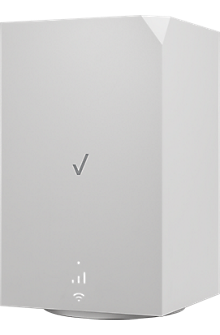













Verizon 5G Internet Gateway (ASK-NCQ1338/FA/E) Optimization Guide
Why you can trust Waveform
Waveform is the leading provider of solutions for improving cellular signal and connectivity. Our team of experts has decades of combined experience in wireless communication and remains committed to providing honest, data-driven reviews and recommendations. We rigorously test every product we sell and maintain complete editorial independence. No company can pay to influence our reviews or product ratings.
Read more about Waveform
- Why External Antennas Don’t Work
- Join Us in Asking Verizon to Add Support for External Antennas!
- What You Can Do - Option #1
- Move your SIM card to an upgraded outdoor modem
- What You Can Do - Option #2
- Optimize the Verizon 5G Internet Gateway location
- Why An Outdoor Modem Is Critical for Improving Data Rates
- Verizon 5G Internet Gateway Technical Specifications
- Supported Verizon Bands
- Cellular Modem
- Wi-Fi
- Ports
- Other
- Other Helpful Resources
- Documentation
Looking to get the best possible data rates from your Verizon 5G Internet Gateway (ASK-NCQ1338, ASK-NCQ1338FA, or ASK-NCQ1338E)?
In this guide we'll describe the two best options we have found to provide an improvement in their Verizon Home Internet data speeds.
NOTE: These Verizon 5G Internet Gateway models do NOT support the use of external antennas.
Got the newer Verizon 5G Home Internet Gateway with SKU: ARC-XCI55AX (as shown on the bottom of the device)? Congrats, that device supports the use of external antennas! Check out our guide for that device here.
Why External Antennas Don’t Work
We disassembled the Verizon 5G Internet Gateway (ASK-NCQ1338) and after much poking and prodding, we came to the conclusion that Verizon has designed a device that can’t have external antennas attached.
Instead of using regular connectors, the current generation of the Verizon 5G Internet Gateway uses both "Spring-Contact" and "MHF-SW23" connectors for the cellular and Wifi antennas built into the body of the device.
The picture below displays an example of some of the many "Spring-Contact" and "MHF-SW23" connectors present within the Verizon 5G Internet Gateway (ASK-NCQ1338).
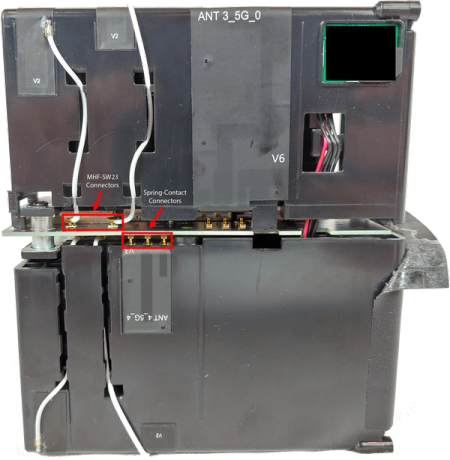
For the Spring-Contacts to meet and enable the system to recognize Wifi and Cellular Antennas, the enclosure must be fully reassembled. From our testing there isn't a way to feed cables into the Verizon 5G Internet Gateway (ASK-NCQ1338) and reassemble the unit.
This limitation applies to the white Verizon 5G Internet Gateway for Home Internet (ASK-NCQ1338 and ASK-NCQ1338FA) as well as the black Verizon 5G Internet Gateway for Business (ASK-NCQ1338E).
Join Us in Asking Verizon to Add Support for External Antennas!
Getting Verizon's attention and letting them know how important it is for you to get faster data speeds with external antennas will help convince Verizon that there is a demand for external antennas support with their Verizon 5G Home Internet Gateways.
You can let Verizon know why improved data speeds are important to you and why you want their future systems to support 4x4 MIMO external antenna connections by sending a message to their Executive Leadership: https://www.verizon.com/about/our-company/leader/contact/922789
What You Can Do - Option #1
Move your SIM card to an upgraded outdoor modem
If you want the biggest possible improvement in performance, the ProLink Outdoor 5G Modem is the upgrade to consider. Instead of keeping your modem indoors and fighting through walls, ProLink combines a high-gain directional antenna and a Qualcomm X62 modem, right where the signal is strongest.
Because ProLink sits outside, where signal is strongest, it can deliver better speeds, lower latency, and more stable connectivity than most indoor gateways - even those that do support external antennas.

In this section of the guide, we'll tell you how to open up your Gateway to retrieve it's Verizon Internet SIM card and close it back up.
Before you get started, you will need the following:
- A #1-size phillips-head screwdriver
- A thin prying tool or flat-head screwdriver
- A secure container to keep screws and small parts safe while you work
Important note:
Be careful not to damage your Verizon Home Internet Gateway while disassembling.
Waveform does not make any guarantees nor take any responsibility for damage caused to your unit when following these instructions. Please proceed at your own risk.
Step-by-Step Guide to Removing the Verizon 5G Internet Gateway SIM card
Step 1: Power off the Verizon 5G Internet Gateway and unplug the power cable.
Step 2: On the bottom of the device, use a prying tool to push the rubber pad to the side.
Step 3: Use a prying tool to remove the square plastic cap (as shown below) to access the Verizon Internet SIM card.
- Note: If the square plastic cap is held in place by a screw, remove the #1-size phillips-head screw before attempting to pry off the square plastic cap.
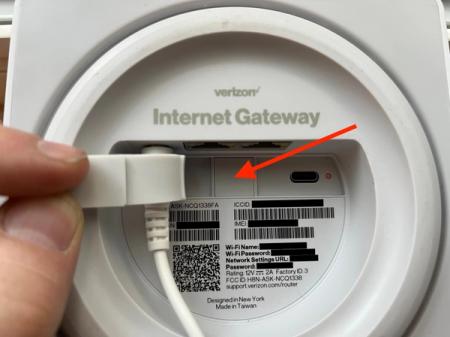
Step 4: Retrieve the Verizon Internet SIM card. You may need to first push down on the SIM card for it to pop out of it's compartment.
Step 5: Reassemble in the system in the reverse order of these steps.
NOTE: To use a Verizon Internet SIM card in a different 5G LTE Router, you will need to manually set the APN of that router to "v5ga01internet".
By using external MIMO antennas placed outside your building, you can bring the faster LTE data rates from outdoors into the 5G LTE Router with much less signal loss.
What You Can Do - Option #2
Optimize the Verizon 5G Internet Gateway location
Here are the best steps for optimizing the position of your Verizon Internet Gateway (ASK-NCQ1338):
- Look up your nearby towers. This can be time consuming and difficult to get right - we've listed our suggestions in an article on the Best Ways to Locate Nearby Cell Towers
- Run speed tests with your Verizon Internet Gateway at the windows closest to each nearby tower (If you have multiple floors, perform this process on each floor).
- Place your Verizon Internet Gateway at the location with the fastest data speeds.
This process is simple but effective if you haven't already optimized the position of your Verizon Internet Gateway, however this method will likely provide only a small improvement to data speeds compared to Option #1.
Why An Outdoor Modem Is Critical for Improving Data Rates
Most people assume that better speeds come from simply boosting signal strength. In reality, strength alone doesn’t determine performance, especially on 4G LTE and 5G networks.
What truly limits 5G performance indoors are three major factors: wall penetration loss, interference (noise), and cable loss. An outdoor modem solves all three at once, enabling performance that an indoor gateway like the Verizon ASK-NCQ1338 simply can’t reach.
Here are the four main reasons placing the modem outside, at the signal source, is so impactful:
Eliminating Wall Penetration Loss
5G signal can struggle indoors, and building materials common in modern homes such as Low-E glass, brick, concrete, and foil-backed insulation can weaken a 5G signal by 10–30 dB before it ever reaches your indoor gateway.
The Verizon Gateway is stuck inside, "listening" to a muffled version of the tower’s signal.An outdoor modem captures the clean, unattenuated signal before it passes through the building.
Because 5G data rates depend on signal quality, moving the modem outside can often double or triple your speeds by allowing the modem to use more efficient modulation like 256-QAM.
Improving SINR (Signal-to-Interference-plus-Noise Ratio)
While people often focus on "bars" (signal strength), the most critical metric for 5G speed is SINR. High SINR enables higher throughput, better stability, and access to faster 5G bands.
The internal antennas in the Verizon ASK-NCQ1338 are omnidirectional so they pick up signals and noise from every direction.
Outdoor modems like ProLink use high-gain directional antennas. By pointing the device directly at the Verizon tower, you amplify the signal you want and "ignore" the noise from other towers.
A cleaner signal (higher SINR) allows the modem to maintain a stable connection on faster 5G bands like n77 (C-Band).
Access to Higher Frequency Bands
Verizon’s fastest 5G (Ultra Wideband) relies on higher frequency bands like n77 and, in some areas, mmWave. These frequencies have poor indoor penetration. Inside, your gateway might only see the n5 (Low-Band) signal, which provides 4G-like speeds.
Outside, the modem can lock onto the n77 (Mid-Band) or even mmWave signals that provide 300 Mbps to 1 Gbps or more speeds, depending on location. A gateway simply couldn't detect those bands through the walls.
Avoiding the Cable Loss Trap
If you simply connected an external antenna to your Verizon Gateway via long coaxial cables, it introduces a good portion of the signal strength inside the cables themselves. Even high-quality LMR-400 coaxial cable loses 3–6 dB every 50 feet at 5G frequencies.
How ProLink fixes this:
These are not just antennas; they are integrated modems. They convert the cellular signal into a digital Ethernet (PoE) signal right at the point of reception. Ethernet carries the signal indoors with little to no loss, no matter the cable length.
If your goal is achieving the best possible speeds and reliability from Verizon’s 5G network, placing both the antenna and modem outdoors is the single biggest upgrade you can make.
Verizon 5G Internet Gateway Technical Specifications
NOTE: This model of Verizon 5G Gateway does NOT support the use of external antennas.
Supported Verizon Bands
- 4G LTE: B2, B4, B5, B13, B48, B66
- 5G: n2, n5, n48*, n66, n77
*Unavailable for Verizon Internet Gateway for Business (ASK-NCQ1338E)
Cellular Modem
- MIMO Support: 4x4 w/ factory antennas only
- Carrier Aggregation: Yes (Uplink)
- LTE Performance Category: Cat 18
- Max Theoretical Speeds: 600 Mbps Download, 75 Mbps Upload
- Max Verizon 5G Home Internet Data Plan Speeds:
- Basic: 300 Mbps Download / 50 Mbps Upload
- Plus: 1000 Mbps Download / 50 Mbps Upload
- Max Verizon 5G Business Data Plan Speeds:
- Low Tier: 100 Mbps Download / ~50 Mbps Upload
- Mid Tier: 200 Mbps Download / ~50 Mbps Upload
- High Tier: 400 Mbps Download / ~50 Mbps Upload
Wi-Fi
- Technologies: Wi-Fi 6 - 802.11 a/b/g/n/ac/ax
- Bands: Simultaneous 2.4 GHz and 5.0 GHz
Ports
- Ethernet Ports: 2x LAN
Other
- Power: AC power only (no battery)
Other Helpful Resources
Documentation
For Home Internet (ASK-NCQ1338, ASK-NCQ1338FA)
For Business (ASK-NCQ1338E)
About the authors
 Austin Rutten
Austin is a Product Manager at Waveform, where he leads technical product development, launch execution, and documentation across the company’s connectivity portfolio. His work spans Waveform Internet, cellular antennas, networking hardware, and the operational systems that support them. With a background in applied mathematics and physics, Austin brings a systems-driven approach to product management — combining technical rigor, customer insight, and structured execution to turn complex connectivity challenges into products that are clear, reliable, and easy to support. He specializes in the parts of product development where technical detail and user experience intersect: performance validation, documentation, troubleshooting, and launch coordination. His focus is on building products that not only work well, but are understood well.
About Waveform
At Waveform we help enable reliable cellular connectivity, everywhere. Trusted by thousands of consumers as well as NASA, Tesla, Stanford, and more. Learn more about Waveform
Suggested articles
See All Guides
Verizon Orbic Speed 4G (RC400L) Optimization Guide
By Austin Rutten · 4 min read
Verizon Orbic Speed 5G (R500L5) Optimization Guide
By Austin Rutten · 4 min read