Booster, extender or repeater? Three words, three price points, and no obvious way to tell which one you need.
Here is the part that makes it simpler.
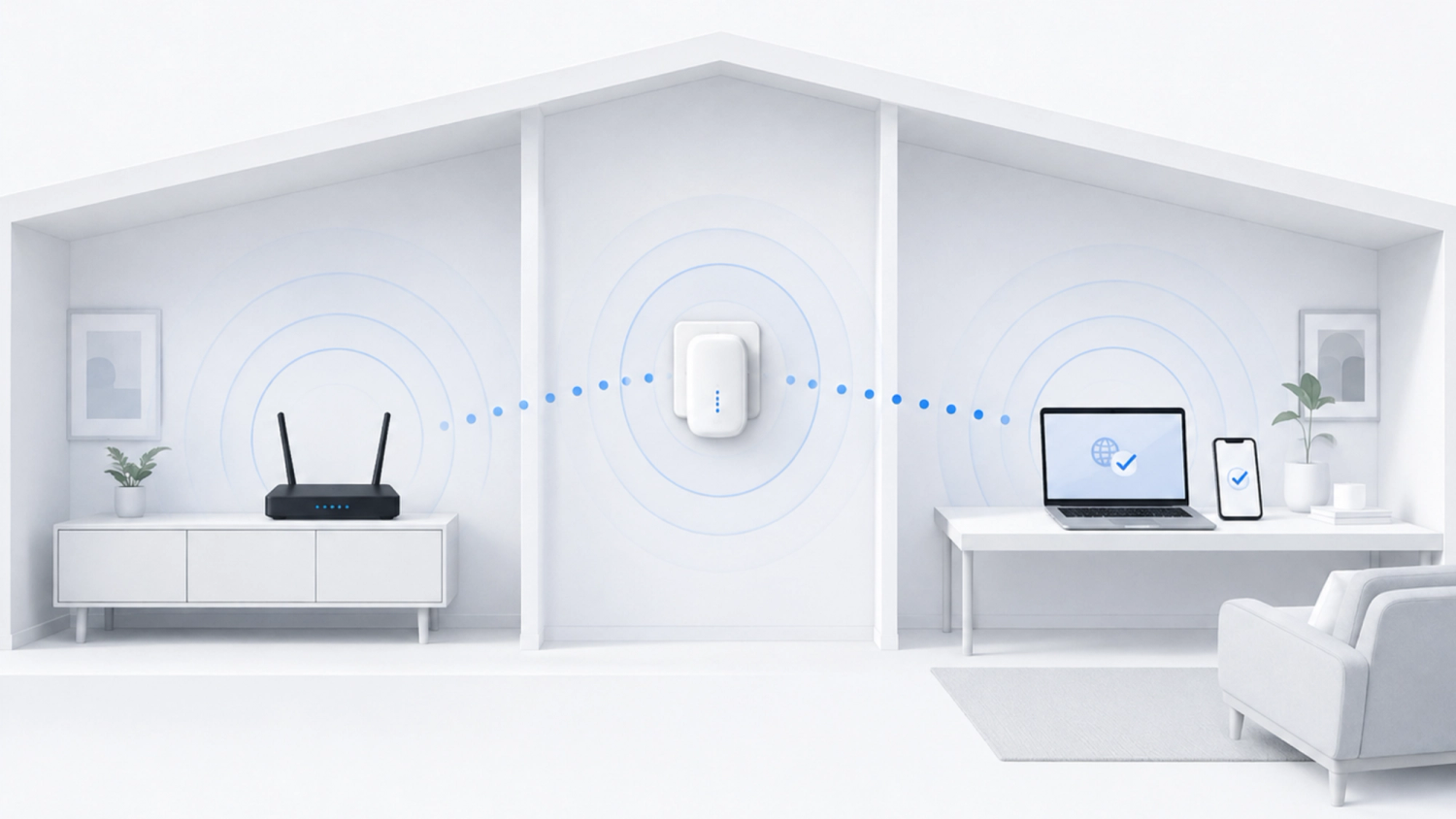
Those three words mostly describe the same device: something that extends your Wi-Fi coverage by picking up your router's signal and rebroadcasting it further into the house.
In this guide, we will take you through what genuinely separates these devices, why some of them cost you more speed than others, and how to work out which one your house needs.
Key takeaways
When it comes to Wi-Fi, "booster" is a marketing word, not a product category. A box labeled "booster" tells you little about what is inside.
The name matters less than the backhaul: the link back to your router. A device that relays your Wi-Fi on the same channel it serves you on can lose a lot of speed. One with a band reserved for that link usually loses less, and one wired to your router loses almost nothing.
You may not need to buy anything. Moving the router or switching a device to a different band fixes a surprising number of dead zones for free.
One dead room is usually an extender job; a whole house usually needs mesh. If that one room is your home office or where you game, a cable to a wired access point is often worth the effort. For whole-home coverage, check out our Wi-Fi extender vs mesh guide.
None of this makes your internet faster. If your plan is 50 Mbps, nothing on this page makes it 200.
First, work out which problem you actually have
Most disappointment with Wi-Fi hardware comes from buying a device that was never going to fix the problem in the first place.
So start with a diagnosis. Stand where the Wi-Fi is bad and look at your phone. What you see there tells you almost everything.
Weak Wi-Fi in one room, fine everywhere else. The classic extender case, and the one situation where a single inexpensive device is usually enough. If you work or game in that room, a wired access point may serve you better.
Weak Wi-Fi across several rooms or a whole floor. One extender is unlikely to fix this, and chaining several compounds the speed loss at every hop. This is a layout problem, and a mesh system or wired access points are the usual answer.
Strong Wi-Fi, but no bars and calls failing. Different problem entirely, and the most common mix-up we see.
Full bars, but everything loads slowly everywhere. Not a coverage problem, so nothing here will help.
Run a speed test on a computer plugged into the router by Ethernet if you can, and compare it with your plan’s advertised speed.
Close to your plan means the plan is the limit. Well below it, even on a cable, points to the router, the modem, congestion or a fault on your provider’s side: restart the modem and router, then call your provider.
Fine on the cable but slow over Wi-Fi? Look at the router’s Wi-Fi: interference, an overloaded or failing router, or one busy device can all do it.
If the connection keeps dropping, and being offline costs you money, that is the problem our Waveform Internet service exists for: it runs on multiple 5G networks, so when one goes down your traffic moves to another.
But before you spend anything, three fixes cost nothing and resolve more dead zones than people expect.
Move the router. It radiates outward on all sides, so one sitting in a corner throws half its coverage into your neighbor’s yard. Central, high and out in the open beats hidden in a cabinet.
Move it away from interference. Microwaves, cordless phone bases, baby monitors, large mirrors, metal shelving. Even fish tanks are a real cause of signal issues, yet almost nobody thinks of them, and why would they?
Check which band the device is on. 5 GHz is faster but handles walls badly, while 2.4 GHz is slower and reaches further. A laptop clinging to 5 GHz at the edge of coverage often works better forced onto 2.4 GHz.
Wi-Fi boosters, repeaters, and extenders. What’s the difference?
What is a Wi-Fi booster?
A Wi-Fi booster is a marketing term, not a product category. No standards body defines it, and a product sold as one might be a repeater, a range extender, a mesh node, a powerline adapter or an access point. It depends on who is selling it, which is why two products with the same word on the box can behave completely differently once plugged in.
What is a Wi-Fi repeater?
A Wi-Fi repeater describes a mechanism. A basic wireless repeater receives and retransmits data over Wi-Fi, which consumes additional airtime. When it uses the same channel for both connections, the available throughput can fall substantially, sometimes approaching half under idealized conditions. That’s because each piece of data crosses the air twice, router to repeater and then repeater to device, and on one channel the two trips have to take turns. The actual reduction depends on your equipment and signal quality.
What is a Wi-Fi range extender?
A Wi-Fi range extender describes an outcome. The covered area gets bigger. The name says nothing about how the device achieves it: most products sold as extenders work like repeaters, while others carry the signal back to the router over a cable, and that difference matters far more than anything on the label.
So what actually separates them?
In practice, nothing reliable. Manufacturers use the three words inconsistently, so a "booster" from one brand can be the same kind of device as a "repeater" from another. Netgear, for example, titles its own extender page "WiFi Boosters & Extenders", while TP-Link lists its RE550 extender as a "Dual-Band Wireless Repeater".
Which means the useful question is not which word is on the box. It is this: how does the device get its signal back to the router? Over the same radio it uses to serve you, over a band kept for that link, or over a cable?
It matters because that link decides how much speed reaches the far rooms: a shared radio loses the most, a dedicated band less, a cable almost nothing.
To keep things clear, this guide uses "Wi-Fi extender" for any plug-in device that picks up your router's signal and rebroadcasts it, "repeater" for the single-radio way of doing that, and "booster" only as the marketing label it is. A mesh system is a set of units that work together as one network, and an access point is a unit wired back to your router by Ethernet.
Every way to fix Wi-Fi coverage
Here are the main ways to improve Wi-Fi coverage, from free fixes to permanent wired solutions.
Option
Rough cost
Speed impact
Best for
Move the router
Free
Positive
Everyone, before spending anything
Change channel or band
Free
Positive
Apartments and dense neighborhoods
Router upgrade
$$ to $$$
Positive
A failing, unsupported or overloaded router
Basic extender (same-channel repeating)
$
Often substantial
Light use in one room
Extender with dedicated backhaul
$$
Modest
One specific dead room
Powerline adapter
$$
Varies with wiring
A device that never moves
MoCA adapter
$$
Usually small
Homes with coax already installed
Mesh system
$$$
Small with wired backhaul; varies over wireless
Whole-home coverage
Wired access points
$$$
Minimal
Large or awkward buildings, and rooms you work or game in
Upgrading the router
A new router can solve the problem outright if yours is failing, no longer gets security updates, or struggles with the number of devices you run. Age alone isn’t the test: a well-placed Wi-Fi 5 (802.11ac) router is still adequate for many homes. Wi-Fi 6 (802.11ax) is a real step up once you have a lot of devices, Wi-Fi 6E adds the less crowded 6 GHz band, and Wi-Fi 7 (802.11be) adds Multi-Link Operation, letting a device use several bands at once.
However, if you already run Wi-Fi 6 and your problem is one dead corner, upgrading to Wi-Fi 7 is an expensive way to solve a cheap problem.
Powerline adapters
These send network traffic over your electrical wiring, with one adapter near the router and one where you need coverage, and setup takes five minutes with no drilling. Powerline is genuinely useful, and it is often overlooked.
Unfortunately it is also the most variable, since performance depends on the age of your wiring and whether the two outlets share a circuit. If you do go down this route, we recommend you buy somewhere with a good return policy.
MoCA adapters
MoCA (Multimedia over Coax Alliance) carries network traffic over the coaxial TV cable already in your walls. It is more consistent than powerline, because coax was built to carry high-frequency signals and household electrical wiring was not.
If your house has coax outlets where you need them, MoCA usually gives a more predictable link than a wireless hop. How well it performs still depends on the condition of the coax, any splitters on the line, and the adapters you use.
Mesh systems
A mesh system typically replaces your router with two or more units acting as one network, and helps your devices move between them as you walk around. For whole-home coverage it is usually the simplest fit. How the units connect to each other (the backhaul) matters more than the headline speed number, and most mesh systems only mesh with their own brand unless both carry Wi-Fi CERTIFIED EasyMesh.
If you would rather have a specific recommendation, we stock eero’s Wi-Fi 7 range directly. The eero Pro 7 makes most sense if your units will link wirelessly. It’s tri-band, so it has more room to carry traffic between units and serve your devices, and eero’s TrueMesh chooses which band carries that traffic, device by device, rather than reserving one band for it. It has two 5 GbE ports if you ever want to wire the backhaul, and it’s covered by our 90-day money-back guarantee. The dual-band eero 7 costs less and suits homes with modest performance needs, while the eero Max 7 is built for multi-gigabit plans and fast wired equipment.
Wired access points
An access point provides Wi-Fi and connects back to your router by Ethernet cable, which is what offices and hotels use. It typically gives the best performance and the most control, but it is also the most work. For most homes, a mesh system delivers most of the benefit for a fraction of the effort. If Ethernet already reaches the rooms you need, though, or one of them is a home office or gaming room, access points can be the better buy.
So which one should you buy?
The answer depends on your situation. Below, we’ve put together a starting point to work from for the most common solutions.
If you’re weighing an extender against mesh, our extender vs mesh guide goes deeper on cost, speed and roaming.
Your situation
Start with
Watch out for
One weak room, decent signal halfway to it
An extender, placed between the router and the dead zone
Putting it in the dead zone itself, where it can only rebroadcast a weak signal
One room you work or game in
A wired access point, or a mesh unit with wired backhaul
Running the cable; MoCA or powerline can stand in if you can’t
A device that never moves, like a console or smart TV
Powerline, MoCA or a direct Ethernet cable
Powerline speeds vary with your wiring
Weak Wi-Fi across several rooms or floors
A mesh system, or wired access points if Ethernet reaches those rooms
Chaining extenders, which adds a wireless hop each time
A home larger than roughly 3,000 sq ft
Mesh with three or more units, or wired access points
A router plus one extender, which usually leaves gaps
Stone, brick, concrete or foil-backed walls
Wired backhaul in whatever form you can get: Ethernet, MoCA or powerline
Spending more on wireless hardware, which rarely gets through a brick chimney
Yard, garage or workshop
An outdoor-rated unit
The word "outdoor" on the box: check the ingress protection (IP) rating
Renting, or can’t touch the router
An extender or a powerline kit, since neither changes your provider’s equipment
Powerline results vary, so buy somewhere with a good return policy
Whatever you choose, three specifications matter more than the price.
Check how it connects back to your router. A cable avoids the wireless penalty almost entirely. Over Wi-Fi, look for a band reserved for that link, or a mode that talks to the router on one band and to your devices on another. "Dual-band" on its own doesn’t tell you which it does, so if the product page doesn’t say, check the manufacturer’s documentation.
Make sure there’s an Ethernet port on the unit. Even if you plan to use it wirelessly today, a port means you can wire it tomorrow, without another expensive purchase.
Look for WPA3 support, then make sure it’s actually in use.WPA3 is mandatory for Wi-Fi CERTIFIED devices, but not every product on sale is certified, and many networks still run WPA2, or a mixed WPA2/WPA3 mode so older devices can join. A listing that mentions only WEP or WPA usually means old stock.
Placement and setup
Placement is one of the most common reasons extenders disappoint.
In simple terms, put it roughly halfway between the router and the dead zone, and no further than the point where the router’s signal is still strong.
An extender can only rebroadcast what it receives, so putting one in the dead zone itself builds a device that faithfully rebroadcasts a bad signal. Too close to the router itself and the ‘extension’ aspect is lost.
There is no useful distance in feet, because walls matter far more than distance. If you are choosing between closer to the router and closer to the dead zone, lean toward the router.
Setup takes about ten minutes, and the order matters. Plug it in near the router first, pair it with your network through the app, change its admin password, and only then move it to its real position. Test from inside the dead zone rather than standing next to the extender.
When setting up, use our free speed test to keep track of your Wi-Fi speeds, and identify the best location based on those readings.
When it is not Wi-Fi at all
What if Wi-Fi was never the issue in the first place?
Wi-Fi is the network inside your home, running from your router to your devices. Cellular is the signal from a carrier’s tower to your phone.
Different frequencies, different equipment, entirely different problems.
So a Wi-Fi extender cannot improve your cell signal, and a cell phone signal booster cannot improve your Wi-Fi.
Look at your phone again in the problem area. Full bars but a weak Wi-Fi symbol is a Wi-Fi problem. Strong Wi-Fi but one bar or "No Service" is cellular, which is why your calls drop while Netflix keeps playing. Both weak usually means the building itself, since the materials that block cellular also attenuate Wi-Fi.
If it turns out to be cellular, that is our actual specialism, and we have been working on it since 2007. A cell phone signal booster takes the signal outside your building, amplifies it, and rebroadcasts it indoors. Our definitive guide to cell phone signal boosters covers how to measure your outdoor signal and whether a booster will help.
Unfortunately, boosters are not right for everyone. If there is essentially no signal outside your building, then there is nothing to amplify, and we will tell you so rather than sell you one. In that case, Wi-Fi calling, which routes calls and texts over your internet connection, is usually the better answer, and our femtocell and microcell guide covers the carrier hardware built for the same job.
Final thoughts
If you remember nothing else: the label tells you little, the backhaul tells you a lot, and a cable, where you can run one, usually beats both.
We recommend starting with the free fixes. Move the router, check the band, look at the channel. If you still need hardware, match it to the problem rather than the price: one dead room usually calls for an extender or a powerline kit, a room you work or game in is worth a cable if you can run one, and a whole difficult house calls for a mesh system or wired access points.
And if it turns out your phone is the thing without bars rather than your laptop, that is a different problem with a different fix, and it is the one we have spent since 2007 solving. Our definitive guide to cell phone signal boosters is the place to start, and our signal specialists are on 1-800-761-3041 if you would rather just chat through your situation with an expert.
Frequently asked questions about Wi-Fi boosters, extenders and repeaters
Is a Wi-Fi booster the same as an extender?
Usually, yes. "Booster" is a marketing term rather than a product category, and most devices sold as boosters are range extenders. What matters is how the device connects back to your router: over the same radio it uses to serve you, over a band reserved for that link, or over a cable.
Does a Wi-Fi repeater reduce speed?
Usually, yes. A basic repeater receives and retransmits everything over Wi-Fi, which uses extra airtime. When it uses the same channel for both connections, throughput can fall substantially, sometimes approaching half under idealized conditions; the actual reduction depends on your equipment and signal quality. A model with a band reserved for the link back to the router loses less, and a wired connection avoids most of the loss.
Which is better, an extender or mesh?
For coverage across several rooms or floors, usually a mesh system, or wired access points if your home already has Ethernet in the right places. An extender makes more sense when you have one specific weak area, want to keep your existing router, and want to spend less. Our Wi-Fi extender vs mesh guide compares them in detail.
Will a Wi-Fi booster increase my internet speed?
No. It can improve the speed you get in a room where the signal was weak, which feels like the same thing, but it cannot exceed the bandwidth your provider delivers.
How far can an extender be from the router?
Close enough to still receive a strong signal, which usually means about halfway to the dead zone. There is no fixed distance, because walls matter more than distance.
Will a Wi-Fi booster help my phone signal?
No. Wi-Fi and cellular are separate systems on different frequencies. If your phone shows full Wi-Fi but no bars, you need a cell phone signal booster rather than anything on this page.